

Why You Should Take A Photo Of Your Parked Car Before Venturing Off While Traveling
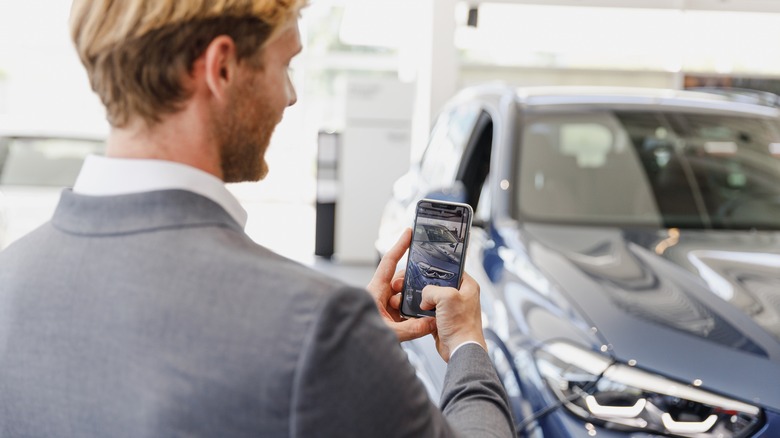
We've all been there — that frustrating moment when your sense of direction betrays you, and you can't find your car in a crowded lot. This is even trickier if it's a rental that doesn't look familiar, or if you've made it to a trailhead where, let's face it, lots of things start to look the same. In most instances, trying to relocate your car can feel like a drag — especially after hours tackling that
underrated hike in a national park
, or finally reaching
.
Thankfully, technology has your back. All you have to do is simply take a photo of your car sitting in its parking spot. Yep — it's that simple. That way, you'll have a nifty cheat sheet to help you memorize (or figure out) where it's located. One of the most obvious reasons for taking a photo of your car is to capture what the surroundings look like. However, the smartest reason to take a picture of your car is to make the most of the metadata stored in your photo, which can pinpoint its exact location later.
Beyond that, it also helps to have a picture of the car's license plate — again, especially if it's a rental — so you can ensure you're returning to the right vehicle. Plus, having a recent photo also documents the car's condition before you leave it, which can be a lifesaver if you come back to a scratch or a dent. If it's a rental, that photo could protect you from being blamed for damage you didn't cause — one of the worst rental car mistakes travelers make far too often.
What is metadata and location tagging?

Nowadays, most Apple and Android smartphones automatically "geotag," or location tag, any photos you take. This is the default setting on many devices, and the data — known as metadata — is then stored within the photo itself. This includes information like your phone model, the date and time the photo was taken, camera settings, and even your precise location. This makes for a surprisingly handy hack when you're traveling and need help getting back to your car.
Accessing your geotag is quite simple. On most iPhones, simply tap the "i" icon at the bottom of your screen, and you'll see the metadata — including a small map that shows where it was taken. On Android devices, open the photo in your Google Photos app and tap the three dots at the side of the picture; a map preview should appear showing the same information.
Of course, you can always turn off location services on your phone to disable this feature. However, for many travelers, geotagging provides valuable information and reassurance. Aside from helping you relocate your car, it also offers a way to check in with friends and family on the road — that way, they always know you're where you're meant to be. Plus, it's a fun way to organize memories. On the Google Photos app, for example, you can actually search for your geotagged photos on a map in the app itself — creating a map of your travels.